Cochrane Library
To export references from the list of results do the following:
Windows:
- Choose which references you want to export
- Select Export selected or export all with Export all
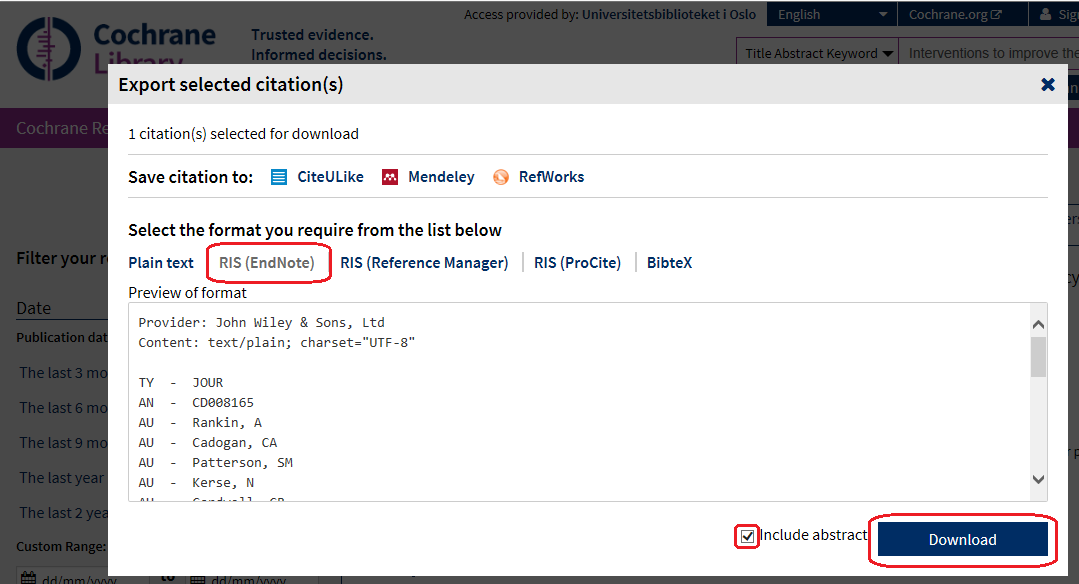
- Select RIS (EndNote) format
- Check for Include abstract if you wish
- Click Download
- Select Open
Mac:
- Follow steps 1-5 as for Windows
- Select "Open With" EndNote (Sometimes you need to choose which EndNote library you want to use)
- Sometimes you have to go to Downloads to find the file.
EBSCO (Anthropology Plus, CINAHL, ATLA Religion etc.)
Databases in EBSCO: ABSEES - American Bibliography of Slavic and East European Studies, Africa Wide, Ageline, America: History and Life, Anthropology Plus, ATLA + ATLASerials, Criminal justice abstracts, Historical abstracts, History of Science Technology and Medicine, Humanities Abstracts, Mental measurements yearbook Series incl Test in Print, Nursing Reference Center Plus, RILM.
To export references from the list of results do the following:
Windows:
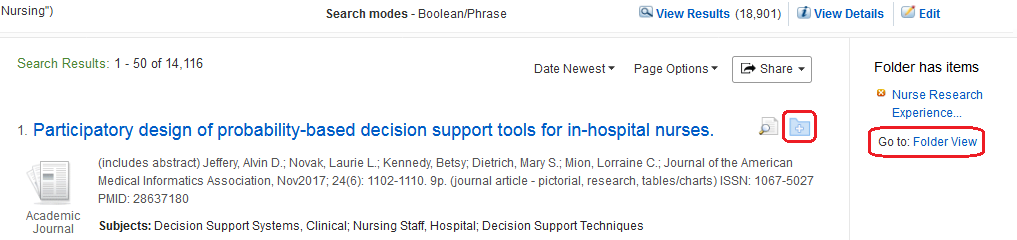
- Select references by clicking on the small folder icon to the right of each reference
- When all references are selected, click on Folder View
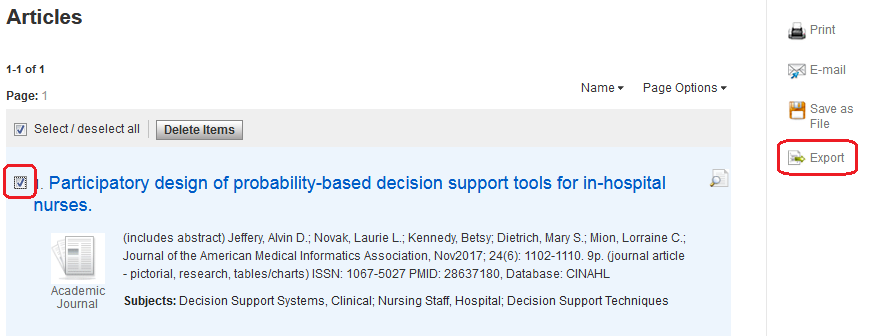
- Select Select All (or select a few)
- Select Export
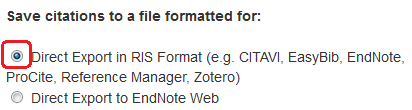
- Select Direct Export in RIS Format and Save
- Select Open. Select EndNote when asked which program you want to open in.
Mac:
Use Firefox or Chrome.
- Follow steps 1-5 as for Windows.
- Select "Open With" EndNote (Sometimes you need to choose which EndNote library you want to use)
- Sometimes you have to go to Downloads to find the file.
Google Scholar
To export references from the list of results do the following:
Windows:
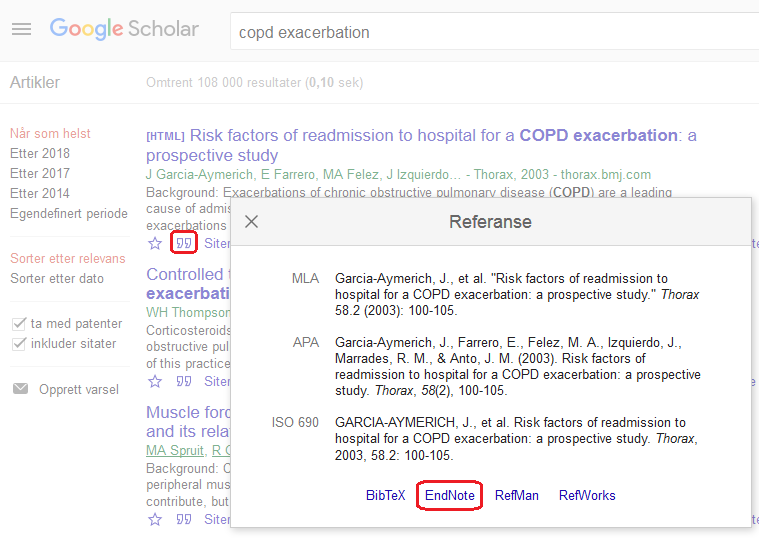
- Click on the quotation mark (") below the reference you want to export and select EndNote. Note that you can only import one at a time.
- In the dialog that appears, select Open
Mac:
Use Firefox or Chrome.
- Follow step 1 as for Windows.
- Select "Open With" EndNote (Sometimes you need to choose which EndNote library you want to use)
- Sometimes you have to go to Downloads / Downloads to find the file.
JSTOR
To export references from the list of results do the following:
Windows:
- Choose which references you want to export from a list of results
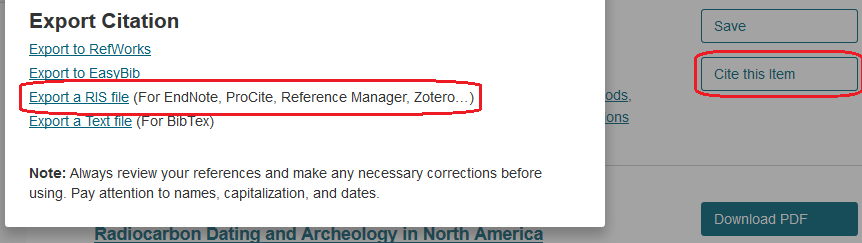
- Select Cite this item and Export a RIS file
- Choose to open the file in EndNote
Mac:
Use Firefox or Chrome.
- Follow step 1-2 as for Windows.
- Select "Open With" EndNote (Sometimes you need to choose which EndNote library you want to use)
- Sometimes you have to go to Downloads to find the file.
Oria
To export references from the list of results do the following:
Windows:
- Click on the three dots in the desired title in the list of results in Oria

- Click on EndNote
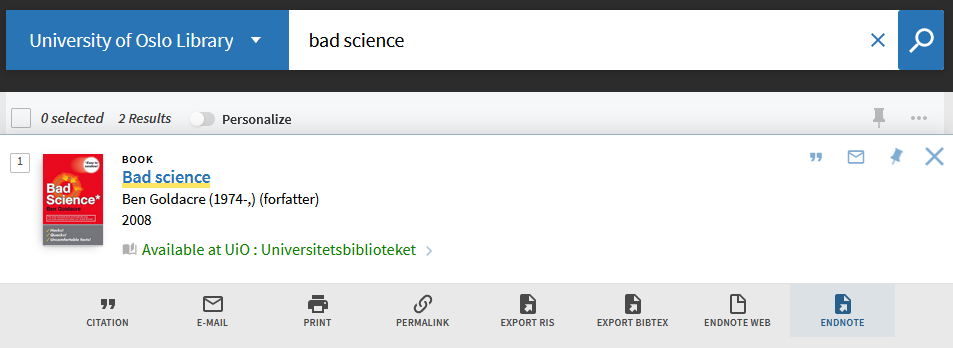
- Download (Endcoding - choose UTF-8)
- Open with EndNote
- Remove any ed./utg. from the Edition field in the EndNote reference (keep the number only)
Mac:
Use Firefox or Chrome.
- Follow step 1-3 as for Windows.
- Select "Open With" EndNote (Sometimes you need to choose which EndNote library you want to use)
- Sometimes you have to go to Downloads to find the file.
- Remove any ed./utg. from the Edition field in the EndNote reference (keep the number only)
Ovid (MEDLINE, ERIC, PsycINFO etc.)
To export references from the list of results do the following:
Windows:
- Choose which references you want to export from a list of results / Uncheck "All" above the list of results if you want to include everyone.
- Select Export, just above the search results.
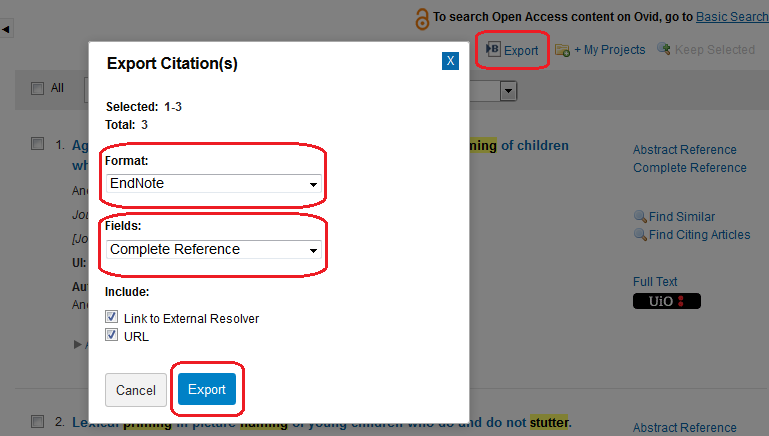
- Make the following choices:
- Format: EndNote
- Fields: Complete Reference
- Export
- Select Open if you are asked to open or to save the file.
Mac:
Use Firefox or Chrome.
- Follow step 1-3 as for Windows.
- Select "Open With" EndNote (Sometimes you need to choose which EndNote library you want to use)
- Sometimes you have to go to Downloads to find the file.
ProQuest (IBSS, EconLIT, Sociological Abstracts etc.)
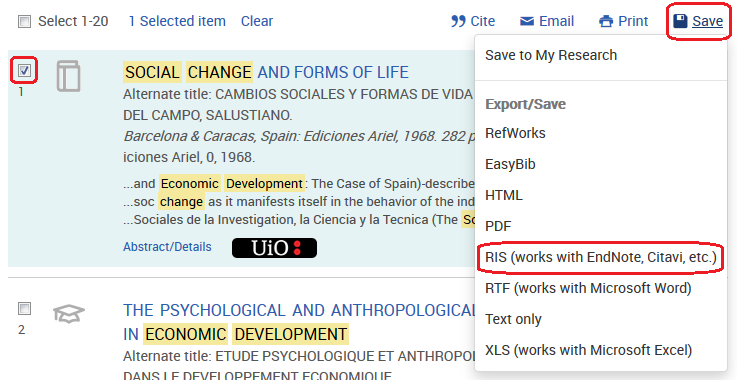
To export references from the list of results do the following:
Windows:
- Select the references you want to export. You can also select the entire page.
- Click Save
- Select RIS (works with EndNote, Citavi, etc.)
- Select Continue in the box that appears.
- Select Open in the next window and the reference will be imported to EndNote.
Mac:
Use Firefox or Chrome.
- Follow step 1-4 as for Windows.
- Select "Open With" EndNote (Sometimes you need to choose which EndNote library you want to use)
- Sometimes you have to go to Downloads to find the file.
PubMed
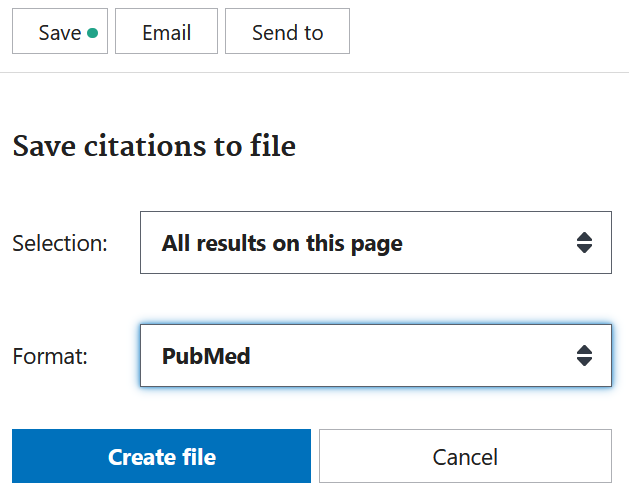
To export references from the list of results do the following:
Windows:
- Click the Send to button
- Selection: choose from
- All results on page (all references on the page)
- All results (the whole search)
- Selection (the selection you may have made yourself)
- Create file
- Select Open if asked to open or save the file
Mac:
Use Firefox or Chrome.
- Follow step 1-3 as for Windows.
- Select "Open With" EndNote (Sometimes you need to choose which EndNote library you want to use)
- Sometimes you have to go to Downloads to find the file.
Scopus
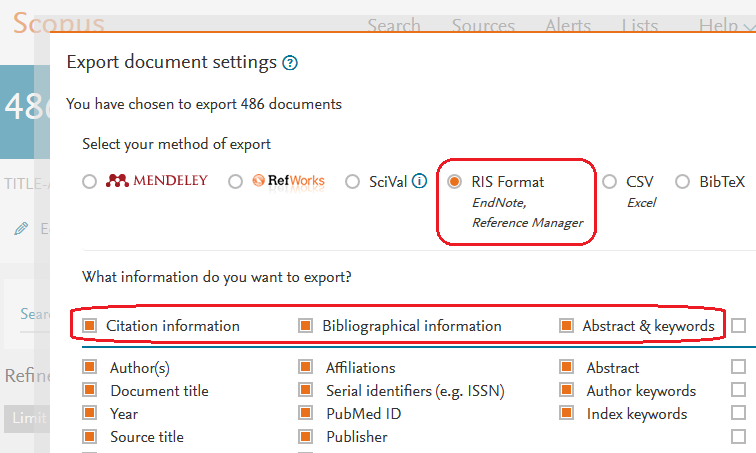
To export references from the list of results do the following:
Windows:
- Choose which references you want to export
- Select Export and RIS Format
- Check what information you want (we recommend the first three columns)
- Click Export
- Choose to open the file in EndNote
Mac:
Use Firefox or Chrome.
- Follow step 1-4 as for Windows.
- Select "Open With" EndNote (Sometimes you need to choose which EndNote library you want to use)
- Sometimes you have to go to Downloads to find the file.
Web of Science
To export references from the list of results do the following:
Windows:
- Choose which references you want to export
- Select Save to EndNote desktop
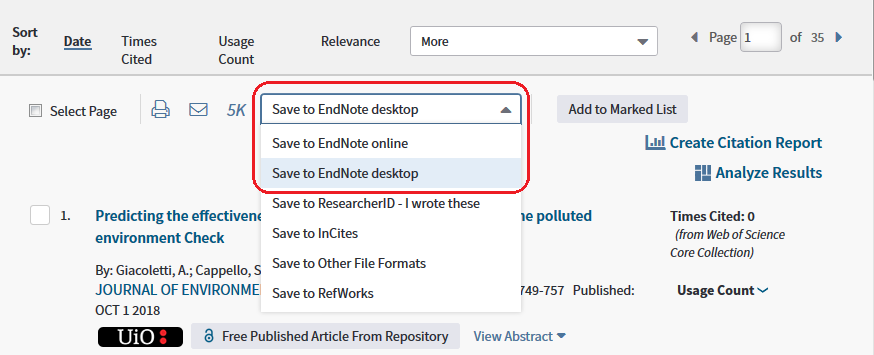
- Record content: Full record.
- Send
Mac:
Use Firefox or Chrome.
- Follow step 1-4 as for Windows.
- Select "Open With" EndNote (Sometimes you need to choose which EndNote library you want to use)
- Sometimes you have to go to Downloads to find the file.