Zotero Connector
Most types of references can be gathered using the Zotero Connector. Install the Connector in your browser and pin it to the top for easy import.
The Zotero Connector will change its appearance depending on the resource you are looking at. The symbol may represent a book, article, or folder if there are multiple sources on the same page. If a grey Z appears, Zotero is inactive and cannot read the information from the page.
To add the reference information of a web page, article, book, etc. from the page you are on:
- Click on the Connector icon to save the reference(s).
- In the small window that opens, select in which collection in your Zotero library you want to add the new reference(s). The attachments that will be downloaded with the reference will be displayed, such as full-text PDFs for articles or Snapshots for web pages.

- You can expand the window with the arrow button to see the entire folder structure in your collection and possibly change folders. Here you can also tag the reference if you wish.
- Complete the saving of the reference by clicking outside the Zotero window or clicking on Done in the expanded window.
- Go to Zotero and check if the reference was saved correctly. Edit any information in the reference if necessary.
Importing references via identifier
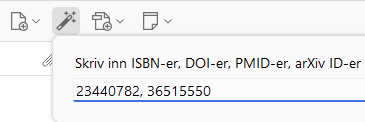
In Zotero, you will find a toolbar for adding items to with a magic wand symbol. You can use the magic wand to quickly import references directly into Zotero based on an identifier (ID). This could be a PMID (PubMed ID), ISBN (for books), DOI (for articles), or arXiv ID (for preprints). (This is useful if the Zotero connector doesn't work properly and you already have this information available.)
Click on the magic wand (see image), paste the desired ID (if there are multiple, separate with commas), and click Enter.
Creating references based on PDF
If you have saved PDFs of journal articles on your computer without a corresponding reference in Zotero, you can quickly create a reference by dragging and dropping the PDF file into Zotero. Take care to drop it into My Library or a Collection, if you drop it on another reference it will just attach itself to it and not create a new reference.
Journal articles usually have a digital object identifier (DOI) that can be used to locate the article online and download the reference. For PDFs of other sources, typically only the PDF will be imported as an attachment, without a reference. You can then add the missing information manually.
Creating references manually
In some cases, it is not possible to import a reference via the Connector (grey Z in the browser), RIS file, search by ID, or PDF import. You can then create a reference manually in Zotero.
- Click on the New Item button and select the appropriate resource type (= Item Type).
If you do not see a suitable item type, you can choose another type first and change it later.

- The new reference will open in the window to the right.
- Fill in all the information required for the source you selected. Consult a style guide if you need to.
Importing larger sets of references
As an alternative to saving references via the Connector, you can download a file containing references from a database and then import this file into Zotero. This is particularly useful if you want to save many references at once, e.g., all references from a search result.
Most databases allow you to export references in various formats. RIS is a file format that can be read by most reference tools, so choose this for Zotero.
To download the RIS file from a database, you can follow this guide for reference import in EndNote. Note that if both RIS and EndNote options are available, select RIS.
Once you have downloaded the RIS file, go to Zotero to import the file:
- Select File > Import... from the main menu and choose A file in the window that opens.
- Click Next and locate the file where you saved it on your computer.
- Then choose whether you want to create a new collection for the references in the file.
- Click Next and then Finish