Word and LibreOffice
When you install Zotero on your machine, Zotero installs a Zotero add-in in the toolbar of Word and/or LibreOffice. If you do not see the add-in, you can install it from the Zotero settings.
Zotero in Word

Zotero in LibreOffice

Functionality of the Zotero add-in
Add/Edit Citation 
Add a new citation where your cursor is positioned, or edit an existing citation.
Add/Edit Bibliography 
Add a bibliography with all references used in the text. You need citations in the text to be able to add the bibliography, but once it's added it will update with every new citation.
Document Preferences 
Select the citation style for the document and the language of the style. In Word, this window will automatically open the first time you click on Add/Edit Citation in a new document.
Refresh 

Update the link between Zotero and Word/LibreOffice. Use the button when you have made changes to the references in Zotero, so that the information in the citations and bibliography is updated. The document automatically refreshes when you add a new citation.
Unlink Citations 

Remove the link between Zotero and citations/references in the text document. After unlinking, you can freely edit references and citations in Word/LibreOffice, and references will no longer be automatically updated when you make changes in Zotero. Note that this step is irreversible, so you should always save a copy with an active link first!
Zotero and Google Docs
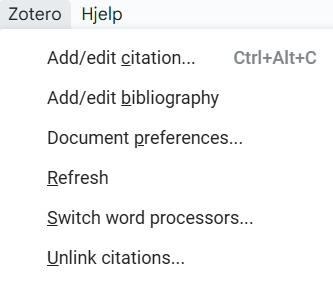
When you install the Zotero Connector, you will automatically receive a Zotero tab in Google Docs, along with a button in the quick menu to add citations. 
In Google Docs, all Zotero functionality is grouped under the Zotero menu item, while Word and LibreOffice have individual buttons for the same. Add a new citation or edit an existing citation with Add/edit citation, add or edit the bibliography with Add/edit bibliography, change style and language in Document preferences, update references from Zotero with Refresh, or unlink the citations from Zotero with Unlink citations.
Zotero and LaTeX
At UiO, you can use the web based LaTeX editor Overleaf in premium version (log in with UiO's SSO) to work with LaTeX documents. You can also use Zotero if you are using a desktop editor for LaTeX.
After you have completed the set-up steps for Zotero integration, you will have access to various integration functions:
Advanced reference search searches all the references you have linked to Zotero and makes it ease to cite with autocomplete. Use this advanced feature in combination with one of the other two solutions which will sync/refresh with the changes you do in Zotero.
Go to Reference management in LaTeX for more help with these integrations and for help with Zotero integrated with LaTeX desktop editor.
Adding a citation
- Place your cursor where you want to insert a citation in the text.
- Click on Add/Edit Citation
- Find the reference you want to insert in the red search box and click on the reference.
- Repeat step 3 if you want to add more references to the same citation.
- Press Enter (or click the arrow to the right in the search box) to continue in the text.

If you wish to view the entire Zotero library while finding references, you can click on the Z symbol in the red box and select Classic View.
In the classic view window, find the reference you wish to add and then click OK.
To add multiple references to the same citation, click the button Multiple Sources...
In the right margin of the window, you can then add, remove, and sort multiple references in the same citation.

If you want Classic View as the default, change it in Zotero under Edit > Preferences > Cite. At the very bottom, check Use classic dialog box for Add citations.
Editing a citation
You can customize each citation to your needs. For example, you can add page numbers for book references and quotes, paragraphs for legal texts, add a prefix or suffix to the citation, or omit the author's name in a citation.
- Click on the citation you wish to edit in the text
- Click on Add/Edit Citation
- In the red search box, click on the citation you wish to change to open the editing window shown in the image below.
- Make the adjustments you want.
- Press Enter to close the window.
- Press Enter again (or click the arrow to the right in the search box) to continue in the text.

In Classic view you can add prefixes, suffixes, page numbers, and similar in the same window you use to add a citation.
Adding and editing the Bibliography
- Place your cursor where you want to add the bibliography in the text.
- Click on Add/Edit Bibliography
Once you have added the bibliography, it will automatically update according to the references you add later.
You can click on Add/Edit Bibliography again later to make adjustments to the bibliography for specific references, such as changing formatting or making minor corrections. If you want to make larger changes to a reference, such as filling in missing information or correcting errors, you should edit the reference itself in Zotero. Then click the Refresh button in Word/LibreOffice to update the references in Word/LibreOffice.
Note: Adjustments made via Add/Edit Bibliography will result in an unlinking of the reference from Zotero, meaning any changes you make to the reference in Zotero will no longer be reflected in Word.